
Detail panel
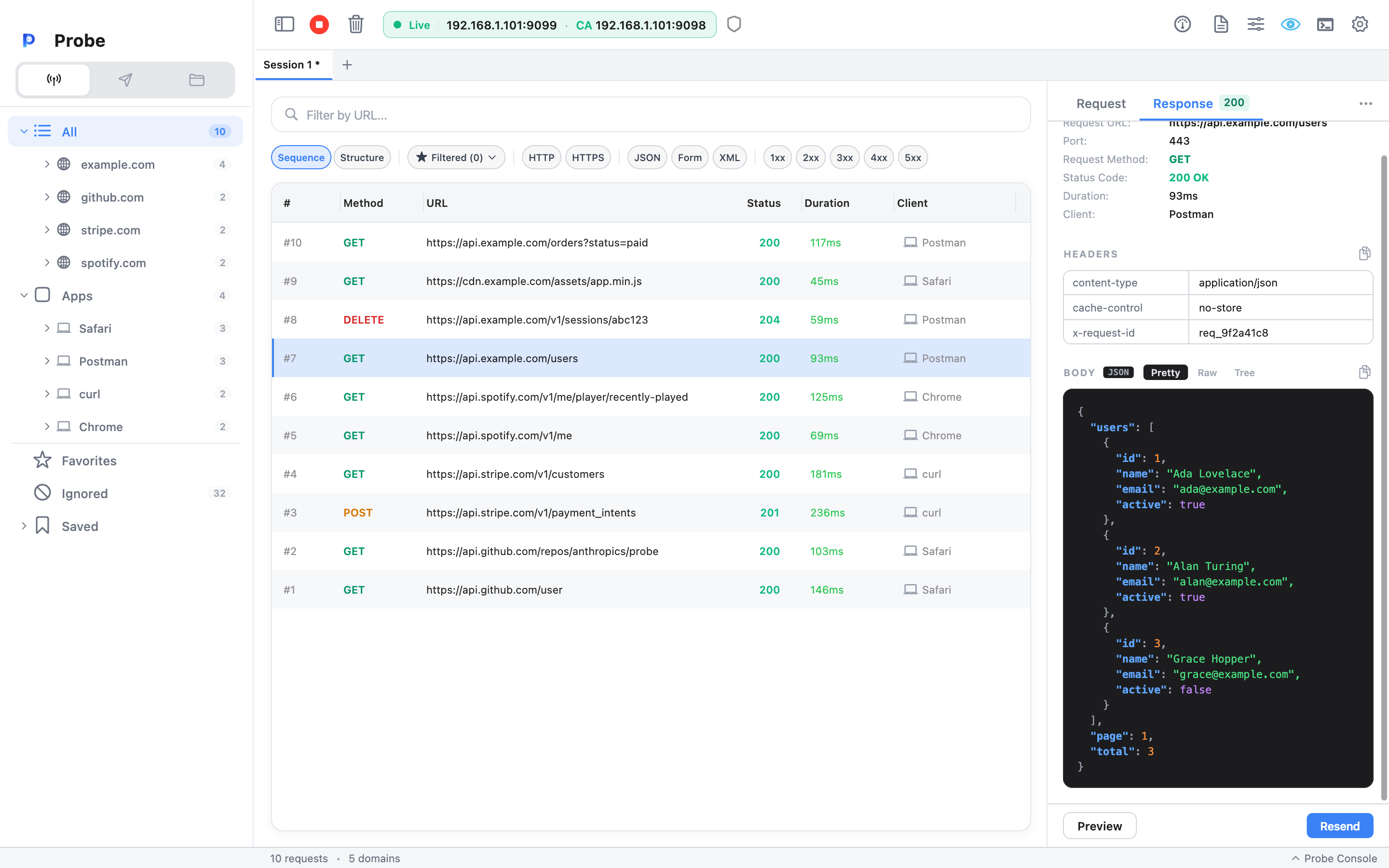
The Detail panel is the right column of the Probe window. It shows the full picture of whichever request is selected in the log table: headers, query params, body, timing, and connection metadata. Three tabs split the content — Request, Response, and Summary — and a header strip at the top gives you the method, URL, and quick actions.
Click any row in the log table to load it here.
Header strip
Section titled “Header strip”Above the tabs sits a one-line header for the selected request:
- Method badge — color-coded: GET (blue), POST (green), PUT (yellow), PATCH (orange), DELETE (red). The colors match across the log table and the Composer so methods stay recognisable.
- Selectable URL — click to place a cursor; drag to copy. Right-click for the export menu, including Copy as cURL (a ready-to-paste shell command, same headers and body).
- Star toggle — pin the host to Favorites in the sidebar. Stars persist across sessions.
Request tab
Section titled “Request tab”Shows everything the client sent:
- Headers — full list including pseudo-headers like
:authorityfor HTTP/2. - Query parameters — parsed out of the URL into a key/value table. Repeated keys are listed individually.
- Body — auto-detected by
Content-Type:- JSON pretty-prints with collapsible nodes and syntax colors.
- Form data (
application/x-www-form-urlencoded,multipart/form-data) renders as a key/value table. - Text formats (XML, HTML, plain) render with line numbers.
- Binary bodies fall back to a hex view with an ASCII gutter.
Each section can be collapsed independently. The body section has a Pretty / Raw toggle when both make sense.
Response tab
Section titled “Response tab”Mirrors the Request tab, plus the status line:
- Status code with reason phrase, color-coded by class (2xx green, 3xx blue, 4xx orange, 5xx red).
- Headers as sent by the origin.
- Body, decoded by
Content-Type. Because Probe stripsAccept-Encodingon outgoing requests (see HTTPS Interception), bodies arrive uncompressed and there’s nothing to ungzip in the UI.
For images, the body view renders the image inline. For SSE / chunked text streams, lines append as they arrive.
Empty 304 responses and Disable Caching
Section titled “Empty 304 responses and Disable Caching”A 304 Not Modified response is empty by design — the server’s saying “your cached copy is still good.” Probe is a wire-level proxy and can’t see the browser’s cache, so the response body in the Detail panel is blank.
When a 304 lands, Probe replaces the empty-body placeholder with a small 304 Not Modified callout. The callout explains why there’s no body and offers a one-click toggle for Disable response caching. Turning it on makes Probe strip If-None-Match and If-Modified-Since from outgoing requests, so the server has nothing to validate against and replies with a full 200 and a body the next time the request fires. Reload the page after flipping the toggle.
The same setting is in Settings → General → Disable response caching if you want to enable it pre-emptively. See Settings.
Summary tab
Section titled “Summary tab”A read-only overview of the exchange, organised into collapsible sections:
- Overview — method, URL, status, client identifier (process name for loopback traffic, IP address for remote phones).
- Timing — wall-clock start, total duration, time-to-first-byte.
- Size — request body bytes sent, response body bytes received (uncompressed).
- Connection — local socket, remote socket, and the DNS-resolved remote address for the host. Useful when you want to know which CDN edge or which load-balanced backend actually answered.
The Summary is what you screenshot when filing a bug — it has every detail another engineer needs to reproduce.
Search inside the Detail panel
Section titled “Search inside the Detail panel”The Detail panel has its own search, separate from the log-table search:
- In the right-side layout (default) the Detail panel has a single search bar that opens automatically. Matches highlight across headers, query params, and body. Use the up/down arrow buttons next to the match counter to jump between hits.
- In the bottom layout Request and Response render side by side; each pane has its own search toggle so you can search the response body without losing your place in the request.
The match counter (3/18) helps when you’re scanning a large body for a specific value.
Quick actions
Section titled “Quick actions”Right-click the row (or use the buttons in the detail-panel footer) for export and replay:
- Copy as cURL — full shell command, including headers and body.
- Copy URL.
- Compose — opens the request in the Composer with everything pre-filled, ready to tweak and resend.
- Export Request — write the request out (cURL, raw HTTP,
.pro, …), or just the Request Body (.json) / Response Body (.json) — the body alone, pretty-printed when it’s valid JSON, ideal for handing a payload to another developer. - Save Response — write the response body to a file (handy for binary downloads or large JSON dumps).
Related
Section titled “Related”- Sequence vs Structure view — picking which row feeds the Detail panel
- Search — log-table search vs Detail-panel search
- HTTPS Interception — why response bodies show up uncompressed
- Composer — replay a captured request with edits