
Filtered Lists
Filtered Lists are saved slices of traffic you can toggle on and off from the filter bar. A list is either a live filter (a set of domains — the list always shows the matching requests in real time) or a hand-picked collection (individual requests you saved into it). They’re a productivity tool for recurring debugging views, not a capture filter.
Filtered Lists only narrow what’s shown. They don’t drop traffic. To stop traffic from being captured in the first place, see Domain Watch.
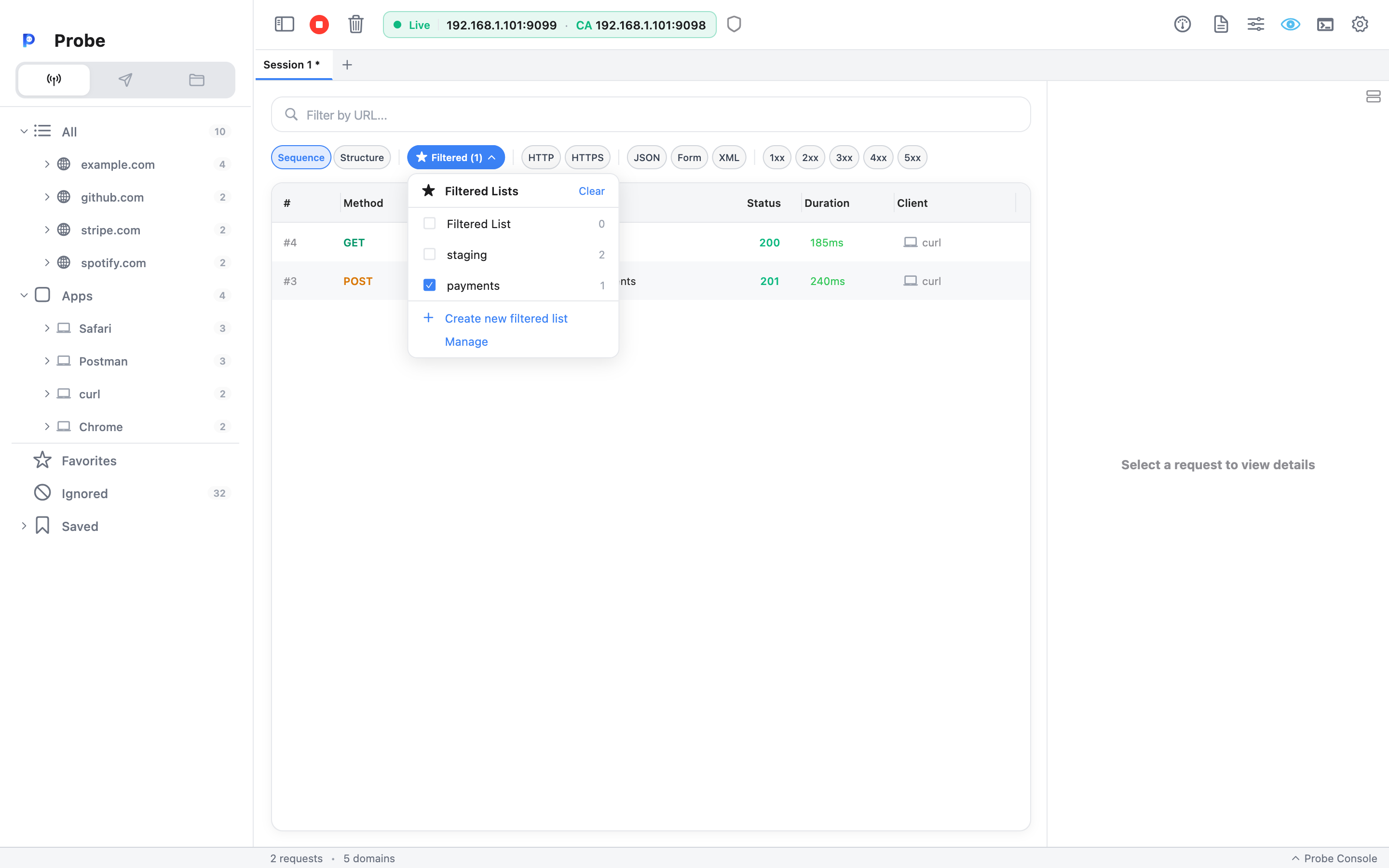
The Filtered chip
Section titled “The Filtered chip”The ★ Filtered (N) chip sits in the filter bar above the log table. N is
how many lists are currently active. Click it to open the dropdown:
- Each row is one list with a checkbox and a count — domains for a live filter, saved requests for a collection.
- Lists are multi-select: tick several and the table shows the union.
- Clear (top right) unticks everything and shows all traffic again.
- Create new filtered list adds an empty list; Manage opens the manager to rename or delete.
Building a live filter list
Section titled “Building a live filter list”- Create a list from the dropdown footer and name it —
staging,payments,auth flow. - Right-click a domain (in the sidebar tree or the Structure view) and pick the list — every request to that domain, current and future, now belongs to the list.
- Add as many domains as you like; the list’s count shows how many domains it watches.
A live filter never goes stale: new traffic to its domains appears the moment it’s captured.
Saving individual requests
Section titled “Saving individual requests”From a log row’s context menu you can save specific requests into a list instead — useful for keeping a curated set (a repro sequence, an API handshake) without pulling in everything from those domains.
Composing with other filtering
Section titled “Composing with other filtering”- Active lists combine with the FilterBar query — tick a list, then type extra keywords to slice further.
- They respect Domain Watch — a list can never reveal traffic that was never captured.
- They work in both Sequence and Structure view.
Lists are stored per machine, not per session — a list you make today is still there tomorrow, whichever session you open.
How this differs from Domain Watch
Section titled “How this differs from Domain Watch”The two features look similar — both reduce what you see — but they sit at different points in the pipeline:
| Feature | When it acts | Reversible? |
|---|---|---|
| Domain Watch | At capture (drops requests before they hit the log) | No — dropped traffic is gone |
| Filtered Lists | At display (hides captured rows) | Yes — untick the list, rows reappear |
A practical workflow uses both: Domain Watch to keep the capture clean, Filtered Lists to slice what got captured into views that match how you debug.
For domains you actively never want to see (telemetry, OS keepalives), use the Ignored list instead — right-click a domain and choose Ignore. Ignored hosts are dropped at capture and persist across restarts. See Domain Watch → Ignored Hosts.
Related
Section titled “Related”- Domain Watch — capture-time noise reduction
- Search — the FilterBar query that composes with lists
- Sequence vs Structure view — lists work in both modes
- Sessions — lists persist across sessions