
Environment Manager
The Environment Manager is a dedicated window for editing every environment and variable across one collection — plus globals — without giving up your spot in the Composer. Use it when the inline environment dropdown isn't enough, for example when you're auditing a collection's variables before sharing it, importing a Postman environment, or cleaning up a sprawling globals list.
This page covers the manager window. If you just want the conceptual model — globals vs environments, initial vs current, secrets, precedence — see Environments & Variables.
Opening the manager
Section titled “Opening the manager”There are three ways in:
- View → Manage Environments… in the menu bar.
- The keyboard shortcut:
Cmd+Shift+Eon macOS,Ctrl+Shift+Eon Windows. - The globe icon in the Collections header of the Composer sidebar (tooltip: Manage Environments).
The manager opens as a separate native window with its own title bar and traffic-light controls. Closing the main window doesn't close the manager.
The manager opens as an in-app overlay dialog over the Composer. Click outside or hit Esc to dismiss.
The manager always opens scoped to one collection. If you have a collection selected in the Composer it uses that; otherwise it picks the first collection in your list. With zero collections, Probe shows a one-line hint instead of an empty editor.
Layout
Section titled “Layout”The window is a left sidebar plus a right-hand variables panel.
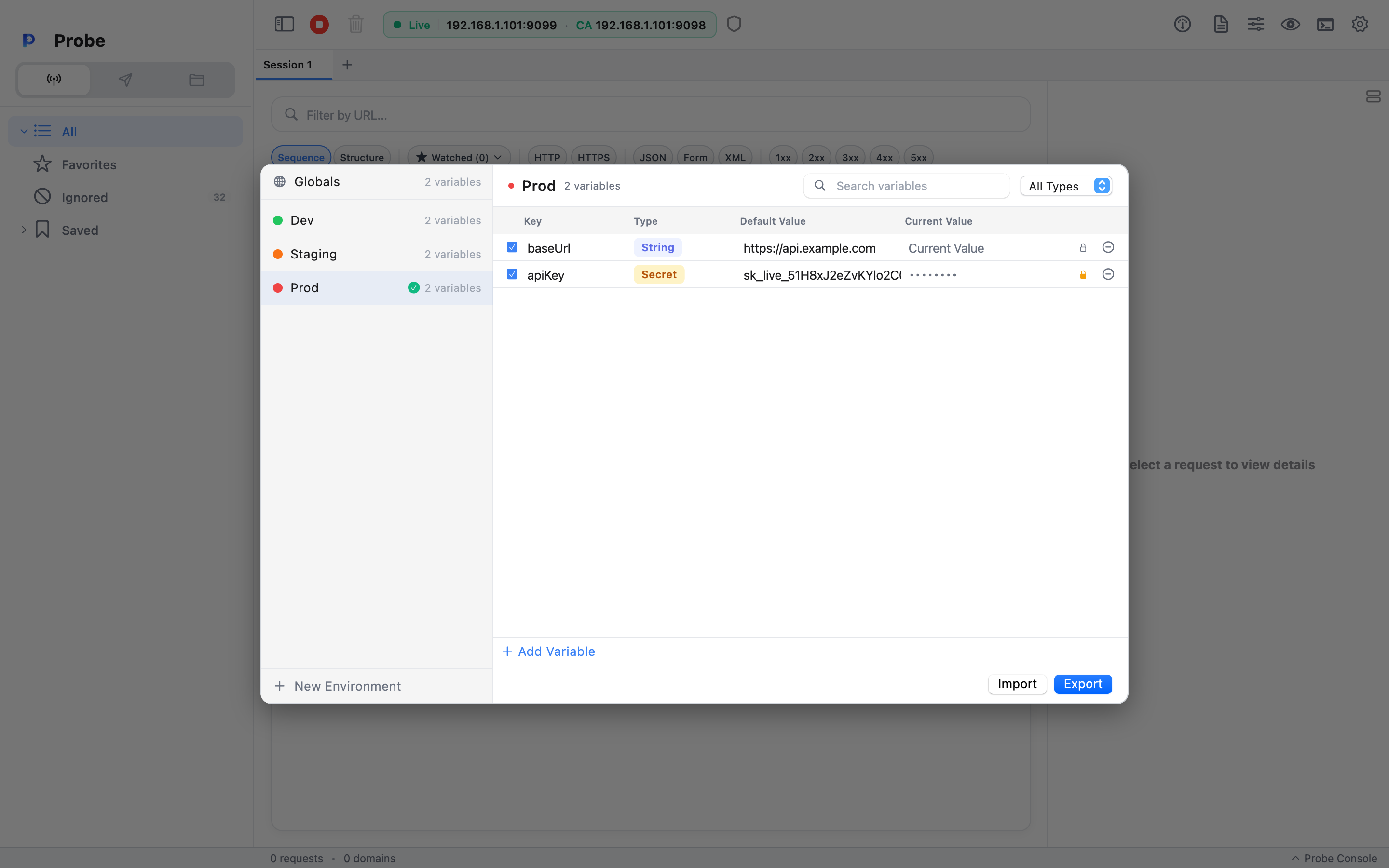
┌──────────────────────┬────────────────────────────────────────────┐│ ● Globals (12) │ ● Prod 2 variables [search] [Type ▾] ││ ─────────────────── │ ────────────────────────────────────────── ││ ● Dev (5) │ Variable Type Initial Current ││ ● Staging (5) │ baseUrl string … … ││ ● Prod ★ (5) │ apiKey secret ●●●●●● ●●●●●● ││ │ ││ + New Environment │ [Import] [Export] │└──────────────────────┴────────────────────────────────────────────┘Sidebar
Section titled “Sidebar”The sidebar lists Globals at the top, then every environment defined in the active collection.
- A small status dot sits to the left of each row. The colour comes from the environment's color tag (red, orange, green, blue, or gray) or — when no tag is set — a stable colour derived from the environment's id, so siblings are visually distinct from launch one.
- The count badge on the right shows how many variables are in that scope.
- An active marker (a star or filled accent) flags the environment currently selected as active for the collection. Switching active environment from the sidebar's right-click menu updates the selector at the top of the Composer too.
- The + New Environment button at the bottom prompts for a name. After confirming, the manager auto-selects the new environment and drops you into a focused, empty key field — type, tab, type, ready.
Right-click any environment row for the per-environment menu:
- Active Environment — toggle it on or off; same action as the Composer's environment dropdown.
- Rename — opens a name prompt.
- Duplicate — copies the entire environment, including current values and secret flags. Useful for
Dev (alt)branches that diverge from a baseline. - Color — submenu with each tag (red, orange, green, blue, gray) shown as a coloured dot; the currently-set tag has a check mark. Pick one and the sidebar dot updates immediately.
- Delete — opens a native confirm dialog. Variables in the deleted environment are dropped; globals and other environments are untouched.
Header
Section titled “Header”The right pane's header shows the selected scope.
- The status dot mirrors the sidebar — same colour, same source.
- The title is the environment name. Click it to switch to inline rename: the title turns into a text field with the name pre-selected.
Entercommits,Escreverts. Globals can't be renamed. - A small subtitle shows the visible-variable count, which respects the search and type filter.
- The search field narrows the variables table to rows whose key or value contains your query (case-insensitive substring).
- The type filter is a dropdown that limits the table to one variable type at a time, or All.
Variables table
Section titled “Variables table”The table has six columns:
| Column | What it does |
|--------|--------------|
| Enabled | Per-row checkbox. Disabled variables aren't substituted at request time. |
| Variable | The variable key. |
| Type | A coloured pill — string, secret, number, boolean, or json. Click to change the type. |
| Initial value | The value committed to disk. Persists between launches; ships with the collection on export. |
| Current value | The session-local override. Pre-request scripts and inline edits write here; takes precedence over the initial when resolving. |
| Lock / Delete | Lock toggles secret (masking the value and forcing the type pill to secret). Trash deletes the row, with a confirm dialog for non-empty rows. |
Variable types today are display-only — Probe doesn't validate that a number row only accepts digits — but the choice informs future input affordances and the Postman export. Toggling the lock and changing the type pill stay in sync: locking forces secret, unlocking returns to string.
The + Add Variable button at the bottom of the table appends an empty row and immediately focuses its key field. Any active search or type filter is cleared first so the new row is guaranteed visible.
Footer — Import and Export
Section titled “Footer — Import and Export”The footer has two buttons, both scoped to whichever scope you have selected (an environment, or globals):
- Export — writes a Postman v2.1 environment JSON file. Default filename is
<env name>.postman_environment.json. Variable types and the secret flag round-trip; secret values export as the empty string so the file is safe to commit. - Import — picks a Postman environment JSON file and merges it into the current scope by key. Existing keys with the same name are overwritten (
initial value,enabled, andtype); keys not present in the import are kept untouched.
This is the easiest path for moving variables in from Postman. There's no separate "import all environments" affordance — the Composer's Importing flow handles full collections; the manager's footer handles one scope at a time.
- Edit globals from anywhere. Globals are listed in the sidebar of every Environment Manager window regardless of which collection it opened against, so you don't need to hunt for the right collection to fix a typo in a shared key.
- Use Color tags as a guard. Tagging
Prodred andDevgreen makes the currently-active environment unmistakable in the Composer environment dropdown and in the manager's sidebar. - Search keys, not values. The search runs against both key and default value, but values can be very long — leading with a key fragment narrows the table faster.
- Type is a hint, not a contract. Probe doesn't reject non-numeric input on a
numberrow today. The choice does, however, drive the export and the masking behaviour forsecret.