
Super Search (Cmd+F Palette)
Super Search is a command-palette-style overlay that searches everything Probe knows about — captured requests, Composer collections, environment variables, rules, and saved sessions — in a single keystroke. It’s the fastest way to jump to a specific URL, variable, rule, or saved request without first locating the right pane.
Open it with Cmd+F on macOS, Ctrl+F on Windows. The same shortcut closes it again.
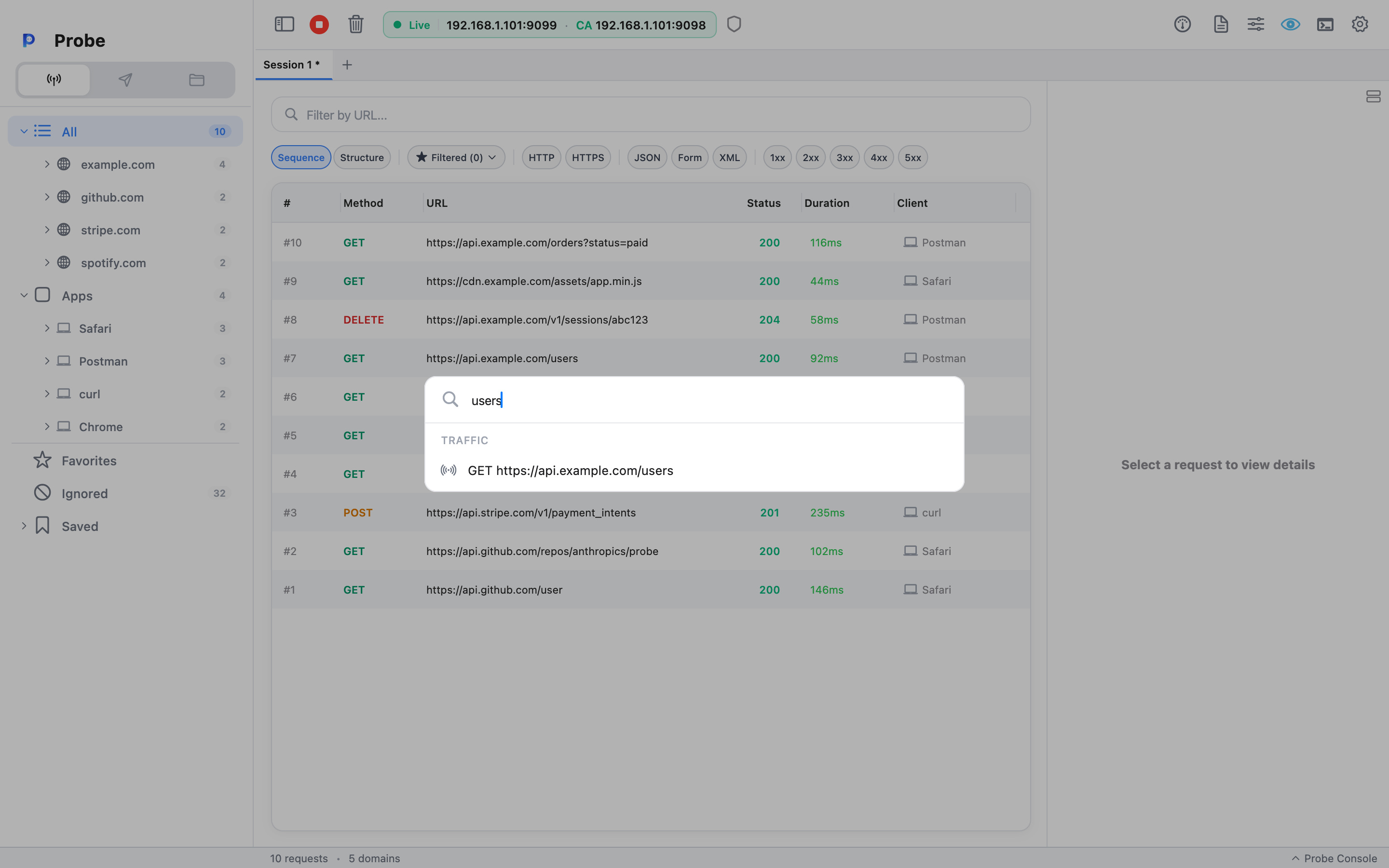
What gets searched
Section titled “What gets searched”Super Search runs your query through nine providers in parallel and groups the hits by source. Every kind shows up under its own section header, with at most ten rows per section so a single noisy source can’t drown out the others.
| Section | What it matches |
|---|---|
| Traffic | Captured requests — method, URL, request and response headers. Bodies are searched once your query is at least three characters long, and only for bodies under 64 KB so keystrokes stay snappy. |
| Compose Requests | Saved Composer requests in any collection or folder — request name, URL, and body. |
| Environments | Variable keys and values across every environment in every collection, plus globals. |
| Map Local | Rule URL pattern and method. |
| Map Remote | Source URL, destination URL, and method. |
| Breakpoints | Breakpoint URL pattern. |
| Throttle | Rule name and matcher pattern. |
| Scripts | Script rule name. |
| Sessions | Saved session name. |
Matching is case-insensitive substring against every field listed above. If a hit doesn’t match on the URL, the row’s subtitle shows the matched header line or a 40-character window around the body match — so you can tell at a glance why that row came back.
A short MITM gotcha worth knowing: captured URLs in Probe always carry an explicit :443 (HTTPS) or :80 (HTTP) port because the Rust handler reads it from req.uri(). Super Search strips the default port before matching, so a query like api.example.com/users finds rows whose stored URL is actually https://api.example.com:443/users.
Using the palette
Section titled “Using the palette”Press Cmd+F (Ctrl+F on Windows). The overlay dims the rest of the window and focuses an input at the top.
- Type to filter. Results update on a 150 ms debounce so a long body grep doesn’t fire on every keystroke.
↓and↑move through results, skipping section headers automatically.Enteropens the selected hit (see What “open” does below).Escor clicking outside the palette closes it without doing anything.
When the query is empty, the palette falls back to its base mode — a list of named commands grouped under Quick Actions and Commands. That’s where you’d reach for things like Open Compose, Toggle Proxy, Open Settings, or Import File without leaving the keyboard.
What “open” does
Section titled “What “open” does”Each hit kind navigates to the most useful surface for that entity:
- Traffic — switches to the Proxy view and scrolls the log table to the matching request, selecting it.
- Compose Requests — switches to the Composer, selects the owning collection, and opens the request in a tab.
- Environments — opens the Environment Manager on the scope that contains the variable (the env, or globals).
- Map Local / Map Remote / Breakpoints / Throttle / Scripts — opens the matching rule manager. The specific row is rendered with the rest of the list, so you can edit it from there.
- Sessions — opens the session manager dialog.
The palette also recognises typed input that isn’t a search query: paste a curl command and the top suggestion becomes Parse cURL; type a URL or a GET https://… line and the top suggestion is Open in Composer. In both cases hitting Enter lifts the input straight into the Composer as a new unsaved request.
- Keep queries short. Super Search caps each section at 10 hits — a more specific query lets the most relevant rows surface first.
- Use it as a launcher. With an empty query, the palette doubles as a command launcher: the Open Throttle Rules, Open Map Remote, Open Console commands all live there, complete with their menu shortcuts shown on the right of each row.
- Variables show their scope. An environment hit’s subtitle reads
<env name> · <value>(orglobal · <value>for globals), so when two environments share a key you can pick the right one without opening the editor first. - Pair with Detail panel search. Super Search jumps you to the request; the in-detail-panel search highlights the term inside the body. Both are independent.
Related
Section titled “Related”- FilterBar search — narrow the live log table to a substring.
- Keyboard Shortcuts — the full list, including the palette shortcut.
- Composer — where typed URLs and parsed cURLs land.
- Environment Manager — opened when you pick a variable hit.