
Pinning detection
Some apps refuse to trust user-installed CAs no matter what. Even with Probe’s CA installed and trusted on the device, the TLS handshake fails and the connection drops — usually with no error visible to you, just a feature in the app that quietly stops working. That’s certificate pinning, and Probe surfaces it with a banner the moment the pattern shows up in traffic.
The banner is a suggestion, not an action — Probe never ignores a host on its own. It shows you the host that looks pinned and lets you decide whether to ignore it. (This is a behaviour change: earlier builds auto-ignored flagged hosts, which occasionally stopped capturing a host by mistake. See If a host stopped being captured if you were bitten by that.)
This page explains what pinning is, how Probe detects it, what the banner shows you, and what you can do about it.
Why pinning breaks Probe
Section titled “Why pinning breaks Probe”When Probe intercepts an HTTPS connection, it mints a leaf certificate signed by Probe’s local CA. Devices that trust the Probe CA accept that leaf and the handshake completes — Probe sees plaintext on both sides. See HTTPS Interception for the full handshake walkthrough.
A pinned client doesn’t ask the OS trust store. It ships its own list of acceptable certificates (or public-key fingerprints) and rejects anything outside that list, including Probe’s leaf. The handshake dies before any HTTP request flows. Common offenders:
- Apple identity services (passkey sign-in, iCloud authentication)
- Google sign-in flows
- Banking, fintech, and payment apps
- Messaging apps that emphasise privacy (Signal, some WhatsApp endpoints)
- Anti-fraud and analytics SDKs embedded inside otherwise-debuggable apps
There’s no proxy-side fix. Pinning is enforced inside the app binary — the only knob is on the app side.
How Probe detects it
Section titled “How Probe detects it”Probe instruments two per-host counters in the proxy hot path:
- attempts — incremented when the client opens a
CONNECT host:portfor MITM. - successes — incremented when an inner HTTP request actually flows through that MITM tunnel.
A host is flagged as suspected pinning only when all of these hold, checked every 5 seconds:
- Its 30-second window has fully elapsed. A host still inside its first window is never flagged — so a quick burst of CONNECTs whose first real request simply hasn’t landed yet can’t trip the detector.
- 5 or more attempts in that window. (Raised from 3: iOS preconnect and Happy-Eyeballs connection racing routinely open three tunnels that never carry a request.)
- Zero successes in that window.
- The host has never completed a single decrypted request this session. Once a host successfully carries even one inner request, it’s immune for the rest of the session — truly pinned clients never decrypt even once, whereas preconnect-heavy or long-lived-stream hosts (push notifications, streaming) do.
Once a host fires, Probe silences further flags for it for one hour. Without the silence, a noisy app retrying every few seconds would spam the banner forever; with it, you get one notice, decide (or dismiss), and move on.
These conditions exist to kill false positives: the tick racing the first request, preconnect bursts, long-lived push/streaming connections that never produce discrete HTTP requests, and flaky-Wi-Fi retries. A host that decrypts even once is never suspected.
The banner
Section titled “The banner”When the detector flags one or more hosts, a yellow strip appears at the bottom of the main window — below the status bar on macOS, pinned to the bottom of the layout on Windows. It does not push the log table or status bar around when it appears.
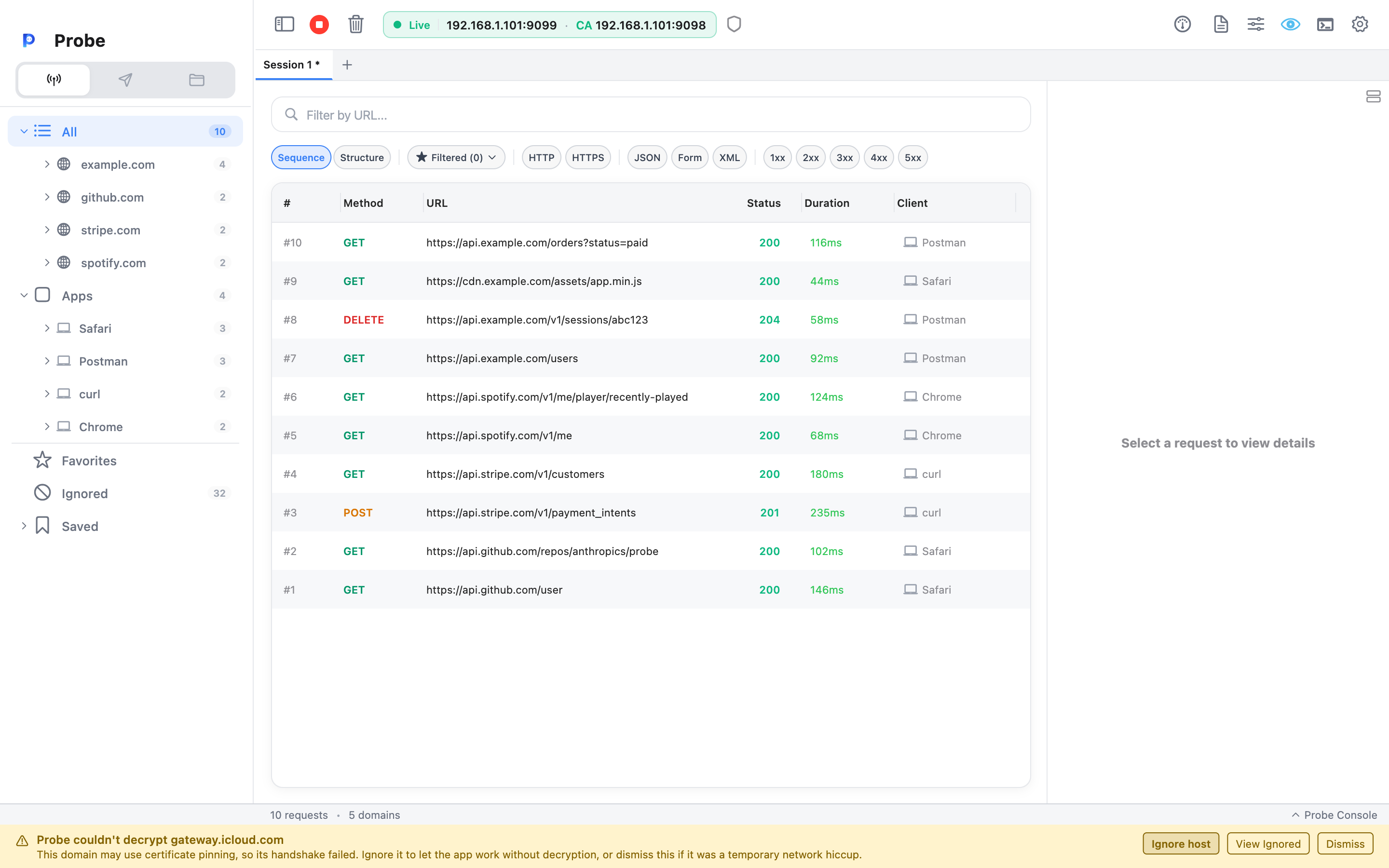
The headline names the most-recently-flagged host:
Probe couldn’t decrypt
accounts.example.comThis domain may use certificate pinning, so its handshake failed. Ignore it to let the app work without decryption, or dismiss this if it was a temporary network hiccup.
The banner is only a suggestion — nothing is ignored until you say so. Buttons sit on the right:
- Ignore host — your explicit choice. Adds the host to your Ignored list. From that point on, Probe stops trying to MITM that host and silently forwards its CONNECT tunnels through. The pinned client gets the real origin’s certificate, so its handshake completes and the feature works again — at the cost that you can’t inspect that traffic. This is the only thing that ignores a host; detection never does it for you.
- Dismiss — removes the banner without changing anything. The host is silenced for the rest of the session; restarting Probe brings it back if the client keeps failing.
- View Ignored — jumps to the Ignored list so you can review it or un-ignore a host you want to debug.
- Show All (N) — appears only when more than one host is currently flagged. Opens the Suspected Pinning child window.
The Suspected Pinning window
Section titled “The Suspected Pinning window”A standalone window listing every flagged host as a row. Each row has its own Ignore host and Dismiss buttons that do the same thing as their banner counterparts but for that specific host.
The list shrinks as you act on rows. When the last host is gone, an empty-state message takes over: No suspected pinning hosts. You can leave the window open as more flags arrive — they’ll appear in real time, since the list is mirrored from the main window.
The only way to open the window is the Show All button on the banner. There’s no menu entry — if no hosts are currently flagged, there’s nothing to show.
What you can actually do
Section titled “What you can actually do”Pinning is enforced by the app, not by the network. The workarounds:
- Use a debug build of your own app that opens up Network Security Config (Android) or relaxes ATS pinning (iOS). For Android, that’s the same Network Security Config snippet covered in Mobile Setup. Drop pinning entirely in debug builds — the production build keeps it.
- Skip the pinned host. If the failing host is an SDK you don’t care about (analytics, crash reporting, an OS identity service), add it to Ignored and let it pass through. You lose visibility on that host but unblock the rest of the app.
- Test with a different client. If you’re debugging an API endpoint and a particular client pins, try the same request from Composer or
curl— neither of those pin, so you can still exercise the endpoint end-to-end. - Patch the binary. Out of scope for these docs and out of scope for Probe itself. Frida and similar tools can disable pinning at runtime on a rooted/jailbroken device, but that’s a separate workflow.
What you should not expect: any combination of certificate-trust toggles, Probe settings, or proxy options that “fixes” pinning. There isn’t one. The decision to pin lives inside the app, and Probe sits outside it.
Why a host might flag falsely
Section titled “Why a host might flag falsely”The detector is heuristic, not certain. A host that’s unreachable for a full 30-second window while a client keeps retrying will look identical to a pinned host from Probe’s vantage point — several handshakes attempted, zero requests flowed. If you dismiss the banner and the host starts working again on its own, that’s almost always what happened.
The stricter conditions above (full window, five attempts, session-level success immunity) exist precisely to make this rare. Because the banner only suggests now, a false positive costs you nothing but a dismissal — it never silently stops capturing anything.
If you see the banner repeatedly for the same host across sessions, and the app feature tied to that host is broken, pinning is the realistic explanation. If you only see it once and the app works fine afterwards, dismiss it.
If a host stopped being captured
Section titled “If a host stopped being captured”If a host suddenly stopped showing up in your traffic and you didn’t knowingly ignore it, check the Ignored list in the sidebar (the IGNORED section). An ignored host is forwarded straight through without decryption, so it produces no log entries.
Older builds of Probe auto-ignored any host the pinning detector flagged, which meant a single false positive could persist into the Ignored list and quietly keep suppressing that host across restarts. Current builds no longer auto-ignore.
One-time cleanup on this update: because Probe can’t tell a bad auto-ignore apart from a host you ignored on purpose, the first launch after updating clears every host you’d added to the Ignored list (the app’s built-in defaults — telemetry/OS keepalives — are kept). This wipes any lingering false-positive auto-ignores in one go. Anything you meant to ignore, just right-click and Ignore again; the reset runs only once, so your choices stick from then on.
Related
Section titled “Related”- Certificate Setup — the install flow Probe needs to MITM at all.
- Mobile Setup — connecting a phone, plus Network Security Config for Android.
- Troubleshooting — broader list of “Probe sees CONNECT but no body” issues.